VirtualDJ Download: How to Get It Free and Start
Mixing
So you want to start mixing and everyone keeps mentioning VirtualDJ. Good instinct. A virtualdj download is the fastest way to go from curious to cueing your first track tonight, and you don't need a paid license or a fancy setup to get going. This software runs on basically anything, from a laptop you already own to a cheap controller you picked up secondhand.
Here's the direct answer: yes, you can grab VirtualDJ for free right now, and the free version covers everything a beginner needs to learn beatmatching, EQ, and basic effects. The trick is knowing which edition to grab, where the official download actually lives, and how to avoid the sketchy third-party sites that bundle in junk software. We'll walk through the installation process step by step so you're not guessing which settings matter.
Below, you'll find exactly how to download VirtualDJ on Windows or Mac, what the free plan does and doesn't allow, and a few setup tips that'll save you from the common mistakes new DJs make in their first week. By the end, you'll have the software installed and ready to load your first playlist.
What you need before downloading VirtualDJ
Before you hit that download button, take five minutes to check your machine actually meets the requirements. Nothing kills the excitement of a first mix session like installing software only to find it lags every time you scratch a track or drops audio mid-mix. VirtualDJ isn't a heavy program compared to full production suites, but it does need decent specs to run smoothly, especially if you plan to run video mixing or heavier plugins down the line.
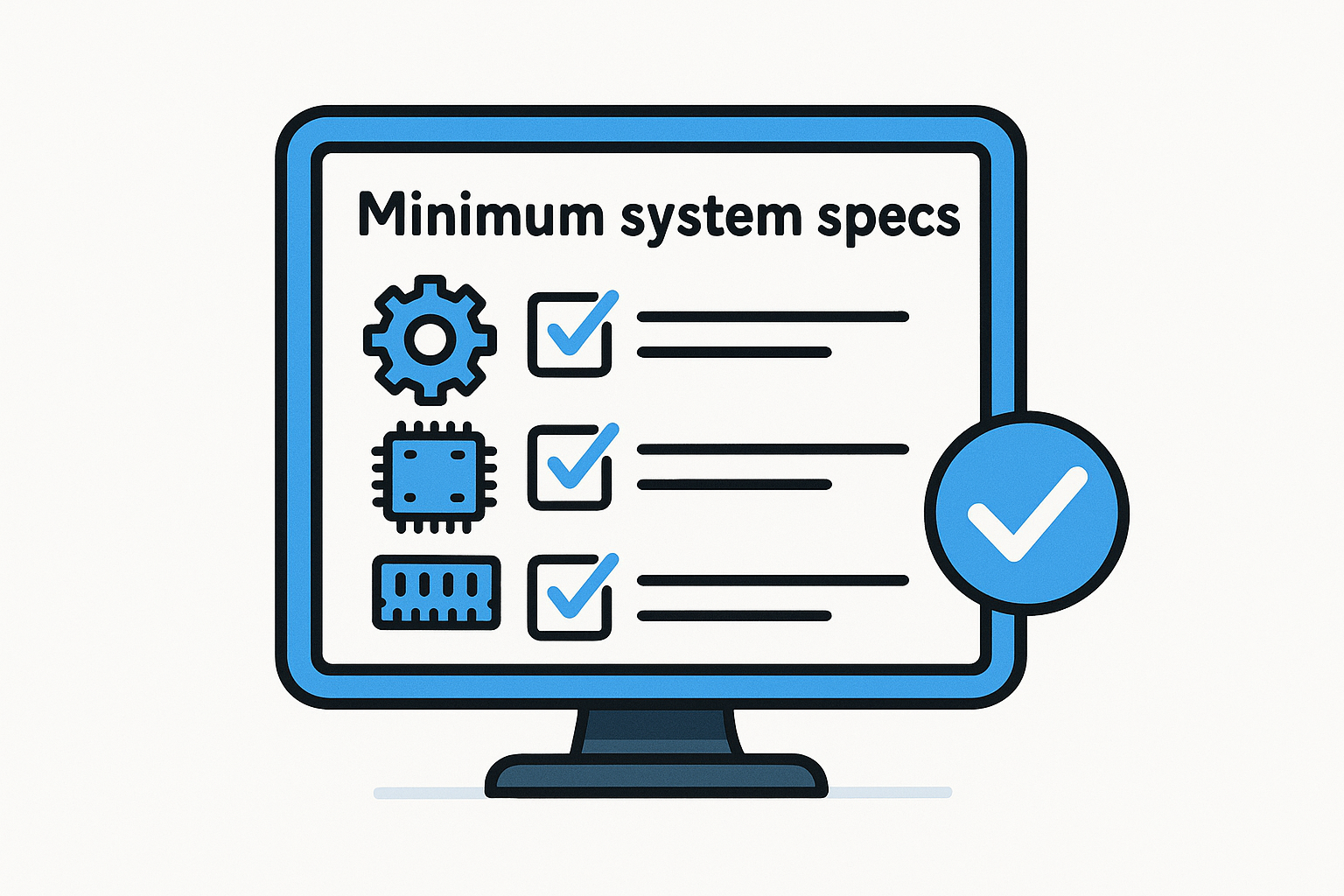
Minimum system specs
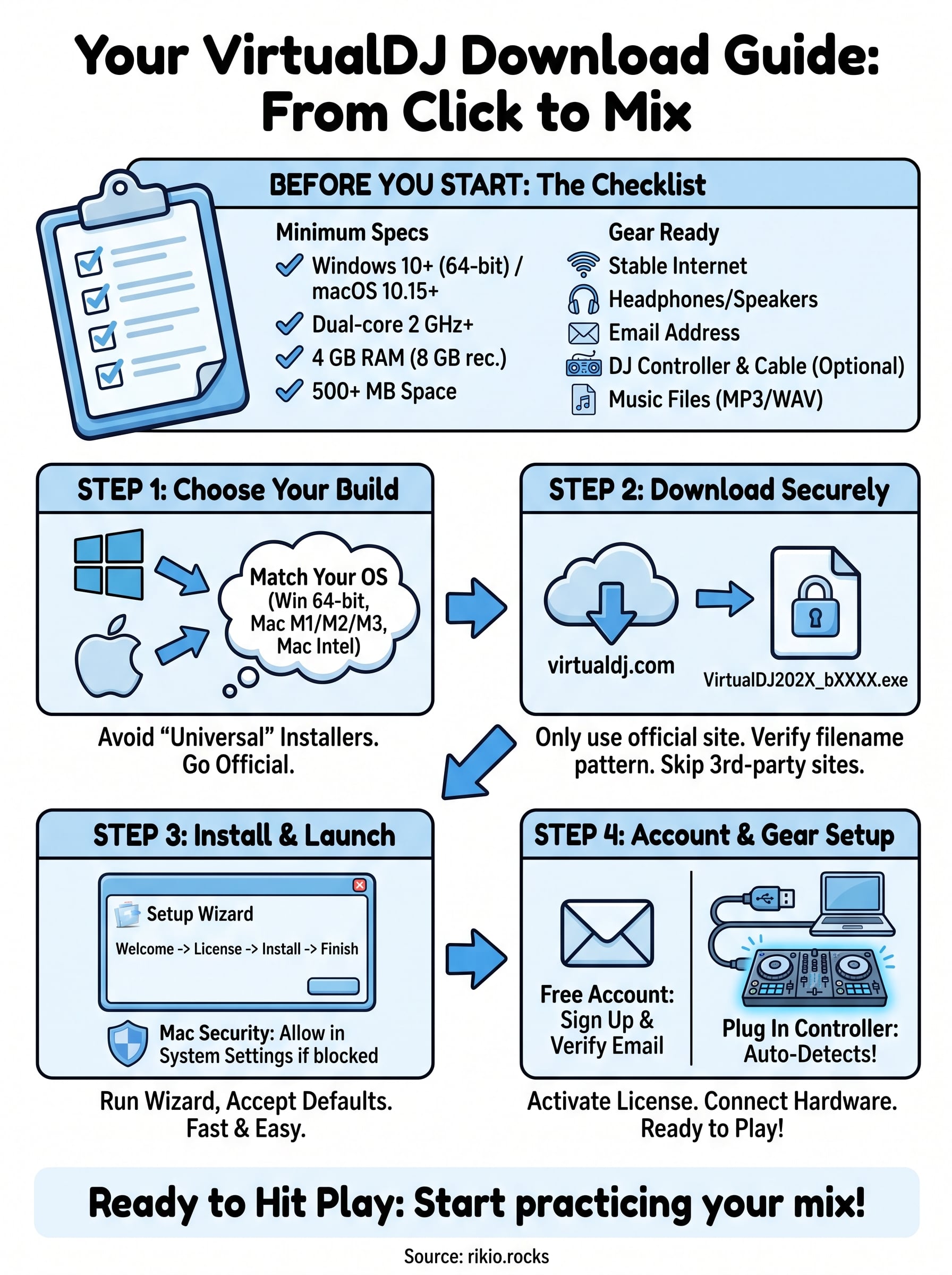
Here's what you're working with on both platforms, based on the current requirements published by the developer:
|
Requirement
|
Windows
|
Mac
|
|
OS version
|
Windows 10 or later (64-bit)
|
macOS 10.15 or later
|
|
Processor
|
Dual-core 2 GHz or better
|
Intel or Apple Silicon
|
|
RAM
|
4 GB minimum, 8 GB recommended
|
4 GB minimum, 8 GB recommended
|
|
Free disk space
|
500 MB for the app, more for music library
|
500 MB for the app, more for music library
|
|
Sound card
|
Built-in audio works for practice
|
Built-in audio works for practice
|
Check your specs first. A five-minute review beats a laggy mix session later.
Gear and accounts to have ready
You don't need a controller to start, VirtualDJ works fine with just your mouse and keyboard for learning the basics. But if you already own hardware, plug it in before installing so the software can detect it during setup. Grab these things before you begin:
- A stable internet connection for the download and activation
- Headphones or speakers to hear your mix
- An email address to register your free account
- Your DJ controller, if you have one, plus its USB cable
- A folder of MP3 or WAV files to practice with
Once you've confirmed your system requirements and gathered your gear, you're ready to pick the right build for your device.
Step 1. Choose the right VirtualDJ version for your device
Picking the correct build matters more than most beginners realize. The official site detects your operating system automatically and serves up the matching installer, but you should still confirm you're grabbing the right one, especially if you're downloading on a shared or work computer that isn't your own.
Windows vs Mac builds
Understand that Windows and Mac versions aren't identical. Windows supports a wider range of third-party controllers out of the box, while Mac users on Apple Silicon get better native performance than older Intel machines running through Rosetta.
|
Platform
|
Best for
|
Notes
|
|
Windows 64-bit
|
Most controllers, older hardware
|
Widest device compatibility
|
|
Mac (Apple Silicon)
|
M1/M2/M3 machines
|
Runs natively, best performance
|
|
Mac (Intel)
|
Older MacBooks
|
Still supported, slightly slower
|
Match the installer to your exact operating system, not just your brand of computer.
Matching your device type to the right build now saves you a reinstall later. Skip any site offering a "universal" installer that claims to work on everything, that's usually a red flag for bundled adware rather than a genuine VirtualDJ release.
Step 2. Download the VirtualDJ installer
Now that you know which build fits your machine, head straight to virtualdj.com and skip anything else Google surfaces above it. Third-party download sites love to repackage the installer with toolbars, browser hijackers, or outdated versions that break controller support. The official download page is free, requires no upfront payment, and only asks for an email address after installation when you activate your account.
Get it from the source
Follow these steps exactly:
- Go to virtualdj.com in your browser.
- Click the download button, it auto-detects Windows or Mac.
- Save the installer file to a folder you'll remember, like Downloads.
- Confirm the file size lands between 150 and 250 MB. Anything drastically smaller is likely fake.
- Right-click the file and run a quick antivirus scan before opening it.
Only trust the installer that comes straight from virtualdj.com, everything else is a gamble.
Watch for the file name
Genuine installers carry names like VirtualDJ2025_b7000.exe or similar version numbers, never generic labels like "setup.exe" or "install_now.exe." Verifying that file naming pattern takes two seconds and saves you from installing malware disguised as DJ software.
Step 3. Install VirtualDJ on your computer
Once the installer finishes downloading, double-click it to launch the setup wizard. The installation process takes under two minutes on most machines, and you don't need to change any advanced settings unless you're a power user with specific folder preferences.
Running the setup wizard
Go through the wizard step by step:
- Double-click the downloaded file to open the installer.
- Accept the license agreement when prompted.
- Choose your install location, the default folder works fine for most people.
- Let it install any required drivers for audio and controller support.
- Click finish and let VirtualDJ launch automatically.
Stick with the default settings during install, you can always customize them later inside the app.
Mac-specific security prompts
Mac users will likely see a security warning asking you to confirm the app came from an identified developer. Head to System Settings, then Privacy & Security, and click "Open Anyway" if macOS blocks the first launch. This is normal for apps downloaded outside the App Store and doesn't mean anything is wrong with the file.
Once the app opens for the first time, you'll land on a welcome screen. That's your cue to move on to account setup and plugging in your gear.
Step 4. Set up your account and connect your gear
With VirtualDJ open for the first time, you'll hit a login screen before you can touch a single track. Registering your free account takes under a minute and unlocks the free license tier automatically, no credit card needed. Just enter your email, pick a password, and confirm through the verification link that lands in your inbox within seconds.
Activating your license
Go through these steps to finish activation:
- Click "Create Account" on the login screen.
- Enter your email and set a password.
- Verify your email from the confirmation message.
- Log back into VirtualDJ, the free license activates instantly.
Your free license unlocks the moment you verify your email, no waiting, no payment.
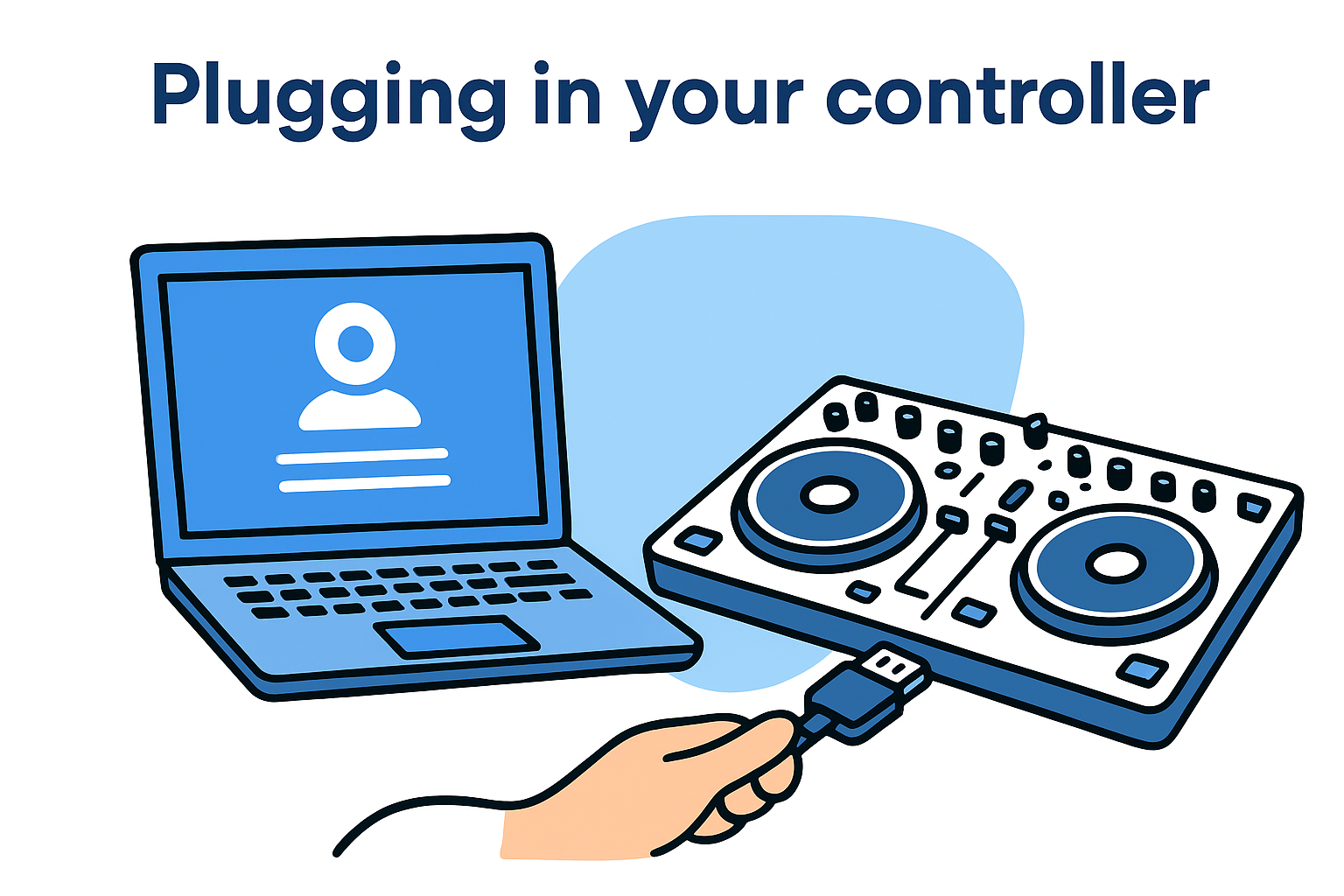
Plugging in your controller
Now connect your DJ controller using its USB cable. VirtualDJ should auto-detect most popular models from Pioneer, Numark, and Hercules the moment you plug in, mapping the jog wheels and faders without extra downloads. If your gear doesn't show up right away, unplug it, restart the app, then reconnect, that resolves the issue nearly every time.
Once your account shows active and your controller lights up on screen, you've cleared the last technical hurdle standing between you and your first mix.
Ready to hit play
You've done the hard part. Your VirtualDJ download is installed, your account is verified, and your controller is talking to the software. Everything else from here is practice, not troubleshooting. Load a track, drop a cue point, and get a feel for how the jog wheel responds before you try blending two songs together.
Give yourself permission to sound rough for the first few sessions. Every DJ you admire started with clumsy transitions and mistimed drops, and the free license gives you plenty of room to experiment without spending a dime. Spend an hour just exploring the effects panel and EQ knobs so they become second nature.
Need music that's actually built for mixing practice? Load up our CARDIO HITS 2026 Playlist on Spotify and start blending tracks with energy built right in.
139