Serato DJ Pro: Install & Setup on Mac And Windows
(2026)
Serato DJ Pro remains one of the most trusted software options for DJs at every level, from bedroom producers just getting started to headliners running festival main stages. Whether you're setting up your first controller or migrating to a new laptop, getting the Serato DJ Pro download right is the first real step. And honestly, the process is straightforward once you know exactly where to go and what to expect for both Mac and Windows.
At RIKIO ROCKS, we cover the tools and tech that keep the EDM community moving. Serato powers sets across clubs, raves, and festivals worldwide, so helping you get it installed and configured correctly matters to us. A botched setup or wrong download source can cost you hours, or worse, compromise your system before you even drop your first track.
This guide walks you through the entire process: where to grab the official installer, system requirements for 2026, step-by-step installation on both operating systems, and how to handle activation, including what's available if you're looking for a free trial or Lite version. Everything you need to go from download to first mix, covered in one place.
Before you download: requirements and licensing
Before you grab the Serato DJ Pro download, confirm two things first: your machine can actually run the software, and you understand which license covers what you need. Running Serato on an underpowered system causes audio dropouts, latency spikes, and unexpected crashes that can derail a session or a live set. Spending five minutes on this checklist now prevents hours of troubleshooting later.
System requirements for Mac and Windows
Serato updates its compatibility list regularly, so always verify against the official Serato documentation before you install. The specs in the table below reflect 2026 requirements, but if you plan to run four decks, record long sets, or add video output, target the recommended column, not the minimum.
|
Component
|
Windows Minimum
|
Windows Recommended
|
macOS Minimum
|
macOS Recommended
|
|
OS
|
Windows 10 (64-bit)
|
Windows 11 (64-bit)
|
macOS 12 Monterey
|
macOS 14 Sonoma
|
|
Processor
|
Intel Core i5 / Ryzen 5
|
Intel Core i7 / Ryzen 7
|
Intel Core i5 / Apple M1
|
Apple M2 or later
|
|
RAM
|
4 GB
|
8 GB
|
4 GB
|
8 GB
|
|
Storage
|
5 GB free
|
10 GB free
|
5 GB free
|
10 GB free
|
|
USB
|
USB 2.0
|
USB 3.0
|
USB 2.0
|
USB 3.0
|
If your laptop sits at or below the minimum specs, close all background applications and disable unnecessary startup processes before you launch Serato to avoid performance issues.
Your audio interface and controller connection also matter here. Serato runs best with a dedicated audio device rather than your laptop's built-in output, and you should plug your controller directly into a port on the machine itself, not through a USB hub, which can introduce timing errors and disconnection issues.
Licensing: Lite, Pro trial, and full Pro
Serato offers three tiers, and knowing the difference upfront stops you from paying for something you already have access to. Serato DJ Lite is completely free and activates automatically with a wide range of compatible controllers. It handles the basics well but cuts off features like four-deck mixing, advanced effects, and third-party streaming services.
Serato DJ Pro unlocks the full feature set and requires either a one-time license or an active subscription. Before purchasing a standalone license, check your controller's documentation or the hardware manufacturer's product page. Many mid-range and professional controllers include a complimentary Serato DJ Pro upgrade tied to hardware registration, which means you may already have access once you register your gear.
If your controller does not include a Pro upgrade, Serato provides a 14-day free trial when you download the software and create a free account. The trial gives you full Pro access with no feature restrictions, so you can test your entire setup before committing to a purchase. After the trial period ends, the software reverts to Lite functionality unless you activate a paid license.
Step 1. Download Serato DJ Pro from the official site
The only place to get the legitimate Serato DJ Pro download is directly from serato.com. Third-party download sites and torrent links carry modified installers that often bundle malware or license-stripping patches capable of damaging your system or cutting off your access to future updates. Do not use them, regardless of how the page is presented.
Navigate to the official download page
Go to serato.com and click Software in the top navigation bar, then select Serato DJ Pro from the product list. On the product page, scroll down to the Downloads section, which displays the current version installers for both Mac and Windows. You will need a free Serato account to complete the download, so create one now if you have not already. Registration is also how Serato ties hardware upgrades and Pro licenses to your account, so skipping it creates problems later when you try to activate.
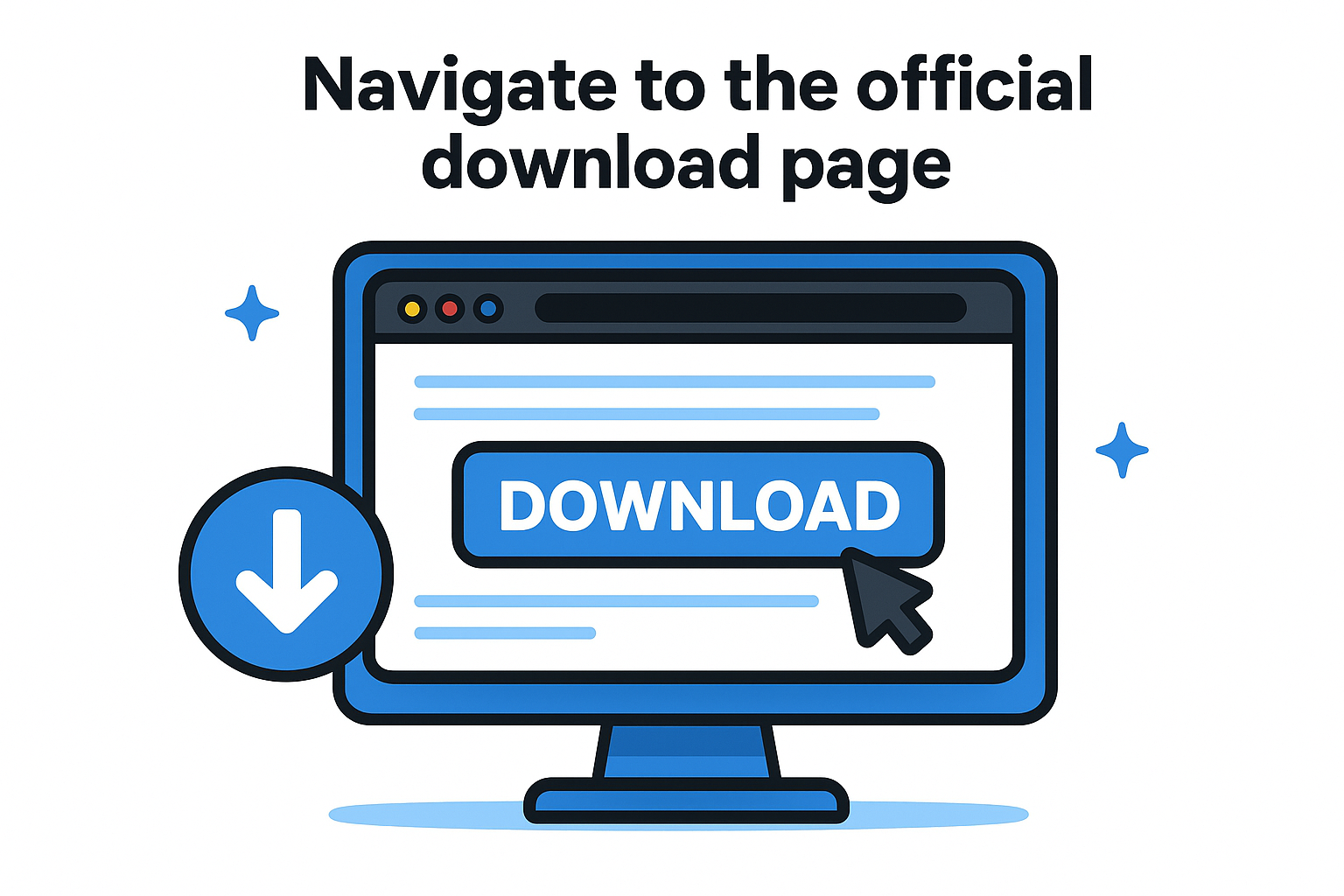
Bookmark the official Serato downloads page so you always pull the correct, up-to-date installer whenever a new version releases.
Choose the right installer for your operating system
Serato provides separate installers for Windows and macOS, and the file formats are different. Use the table below to confirm you are grabbing the correct file for your machine:
|
Operating System
|
File Type
|
Filename pattern
|
|
Windows 10 / 11 (64-bit)
|
.exe
|
SeratoDJPro_x.x.x_Setup.exe
|
|
macOS Monterey or later
|
.dmg
|
SeratoDJPro_x.x.x.dmg
|
Once you click Download, your browser will prompt you to save the file. Save it somewhere easy to find, such as your Desktop or Downloads folder, since you will run it immediately after. Serato DJ Pro installers typically land between 200 MB and 400 MB depending on the version, so budget a few minutes for the transfer on a standard broadband connection before moving to the installation steps.
Step 2. Install Serato DJ Pro on Windows
With your installer file saved to your Desktop or Downloads folder, you are ready to run the setup. Windows installation is quick, but a few specific steps matter if you want the software to run cleanly without permission errors or security blocks on first launch.
Run the installer
Right-click the SeratoDJPro_x.x.x_Setup.exe file and select "Run as administrator" from the context menu. Running as administrator ensures the installer writes all necessary files and registry entries correctly. If you simply double-click the file without elevated permissions, the setup may complete but leave missing components that cause errors when you open the software later.
Follow the on-screen prompts in the setup wizard:
- Accept the End User License Agreement to proceed.
- Choose your installation directory. The default path (C:\Program Files\Serato\Serato DJ Pro) works for most setups.
- Click Install and wait for the progress bar to complete.
- Select Launch Serato DJ Pro on the final screen, then click Finish.
Do not change the default installation directory unless you have a specific reason. Serato references this path internally, and a custom location can cause issues with plugin detection and library indexing.
Handle Windows permissions and antivirus
Windows Defender and third-party antivirus tools occasionally flag the Serato DJ Pro download installer as suspicious because audio software writes low-level drivers to your system. If your antivirus blocks the installation or quarantines the file, add the Serato installer and the installation folder as exceptions in your security software before running setup again.
Windows may also display a User Account Control prompt asking whether you want to allow the program to make changes. Click Yes to proceed. Denying this prompt will stop the installation from finishing correctly. Once installed, Serato DJ Pro will appear in your Start menu and is ready for the activation step covered later in this guide.
Step 3. Install Serato DJ Pro on macOS
The macOS installation process differs from Windows in one key way: Serato ships as a .dmg disk image, not an executable installer. The steps are equally straightforward, but macOS security settings add a layer you need to clear before the software will open for the first time. Work through the steps below in order and the entire process takes under five minutes from start to finish.
Open and run the .dmg file
Locate the SeratoDJPro_x.x.x.dmg file you saved during the Serato DJ Pro download and double-click it to mount the disk image. A Finder window will open showing the Serato DJ Pro application icon alongside a shortcut to your Applications folder. Drag the Serato DJ Pro icon directly onto the Applications folder shortcut to copy the app to the correct location on your system. Do not run Serato from inside the mounted disk image itself, as this causes library and settings sync issues that are time-consuming to fix after the fact.
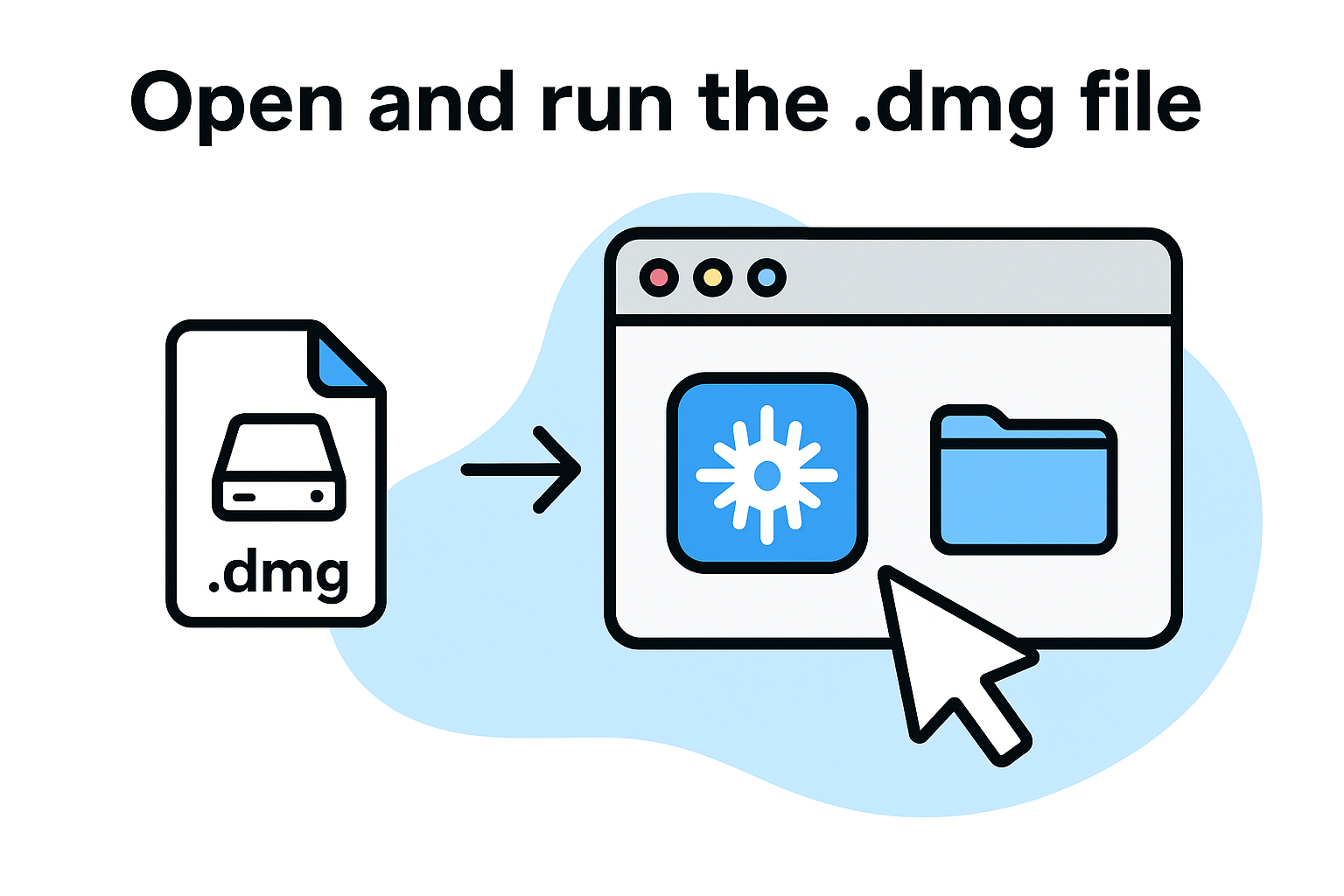
Follow these steps to complete the installation:
- Open your Applications folder in Finder.
- Locate Serato DJ Pro in the app list.
- Double-click to launch it for the first time.
- If macOS blocks the launch, proceed to the security step below before trying again.
Handle macOS security prompts
Apple's Gatekeeper security system blocks apps from unidentified developers by default, and Serato may trigger this warning on first launch even though it is legitimate software. If you see a message stating the app "cannot be opened because it is from an unidentified developer," open System Settings, navigate to Privacy & Security, scroll to the Security section, and click "Open Anyway" next to the Serato DJ Pro entry.
You only need to approve this security prompt once. After that, macOS remembers your choice and launches Serato DJ Pro without any additional confirmation steps.
Your Mac may also request microphone and audio device access when Serato first opens. Grant both permissions immediately, since Serato requires system-level audio access to detect your connected hardware and route audio correctly through your interface or controller.
Step 4. Activate, connect hardware, and optimize
With Serato DJ Pro installed on your machine, three tasks remain before your first session: activating your license, connecting your hardware correctly, and dialing in your audio settings. Skipping any of these steps leads to silent outputs, unrecognized devices, or choppy playback that has nothing to do with your skills and everything to do with configuration.
Activate your license
Open Serato DJ Pro and click the My Serato button in the top right corner of the interface. Log in with the same account you used during the Serato DJ Pro download process. If your controller includes a complimentary Pro upgrade, the license activates automatically once Serato detects your registered hardware. If you purchased a standalone license, enter your serial key in the activation field and click Confirm. The software unlocks all Pro features immediately without requiring a restart.
If your trial period is still active, your Pro features remain accessible until the 14 days expire, at which point Serato reverts to Lite unless you enter a paid license.
Connect your controller or audio interface
Plug your controller or audio interface directly into a USB port on your laptop before opening Serato. Avoid USB hubs entirely since they introduce timing errors that cause audio dropouts mid-set. Once connected, Serato automatically detects compatible hardware and loads the corresponding device driver and layout skin. Confirm your hardware appears under Setup by clicking the wrench icon, then selecting the Hardware tab.
Optimize your audio buffer settings
Navigate to Setup, then Audio to adjust your buffer size. Lower buffer values reduce latency but demand more CPU, while higher values ease the load on your processor at the cost of a slight delay. For most modern laptops, a buffer size between 5 ms and 10 ms hits the right balance for live performance. If you hear crackling or dropouts, increase the buffer by one step at a time until playback stabilizes.
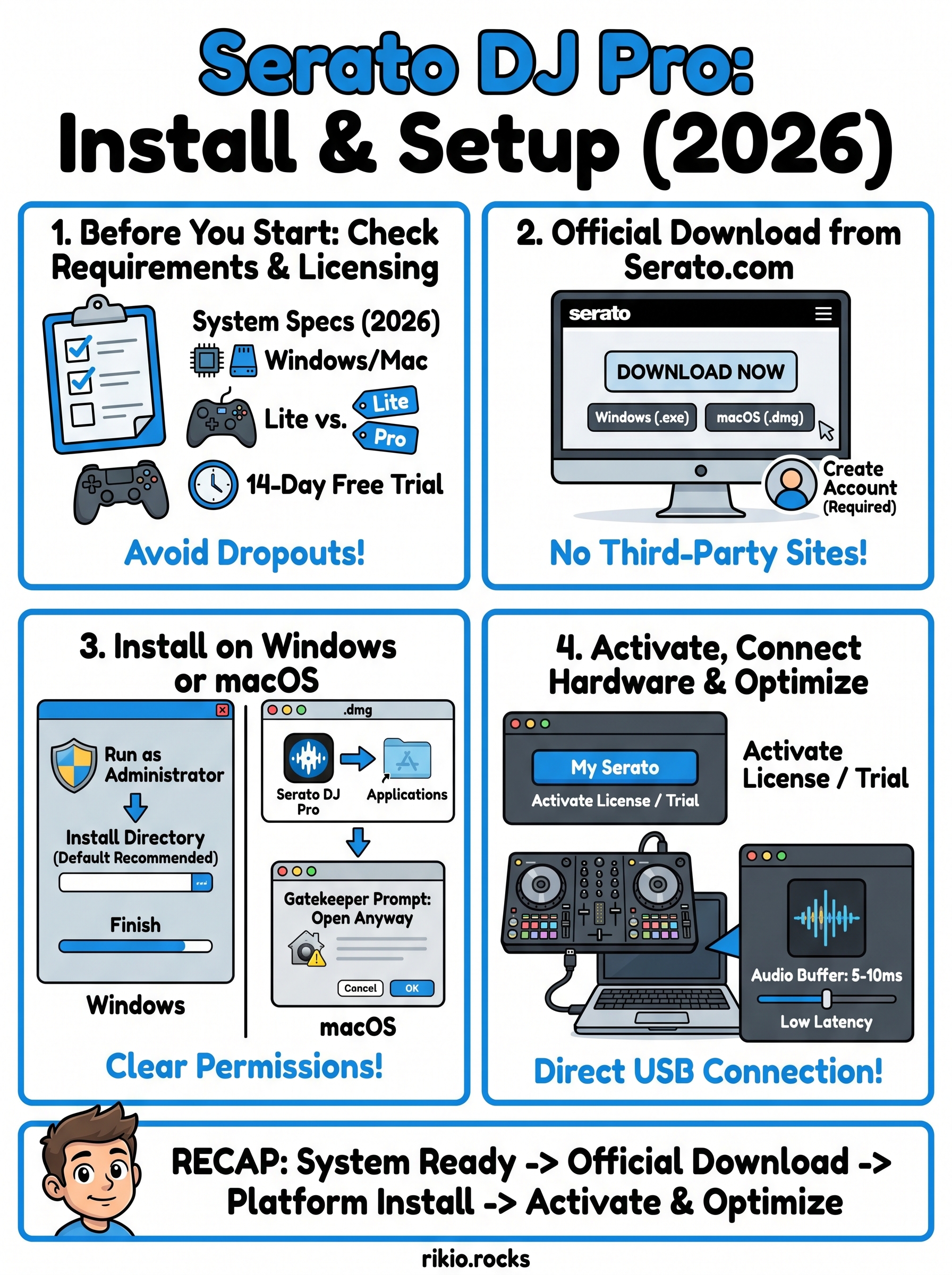
Quick recap
Getting Serato DJ Pro running on your machine comes down to four clear steps: confirm your system meets the 2026 requirements, pull the official installer directly from serato.com, complete the platform-specific setup for Windows or macOS, and handle activation plus hardware configuration before your first session. Every step in this guide points you toward a stable, full-featured setup with no guesswork involved.
If you are still deciding whether to commit to a paid license, remember that the 14-day free trial gives you unrestricted Pro access from the moment you complete your Serato DJ Pro download. Use that window to test your hardware, dial in your buffer settings, and build confidence with the software before spending a dollar.
Now that your setup is solid, you need great music to mix. Fuel your next high-energy EDM session with tracks from our CARDIO HITS 2026 Playlist on Spotify and keep the energy locked in from your first cue point to your last drop.
0